
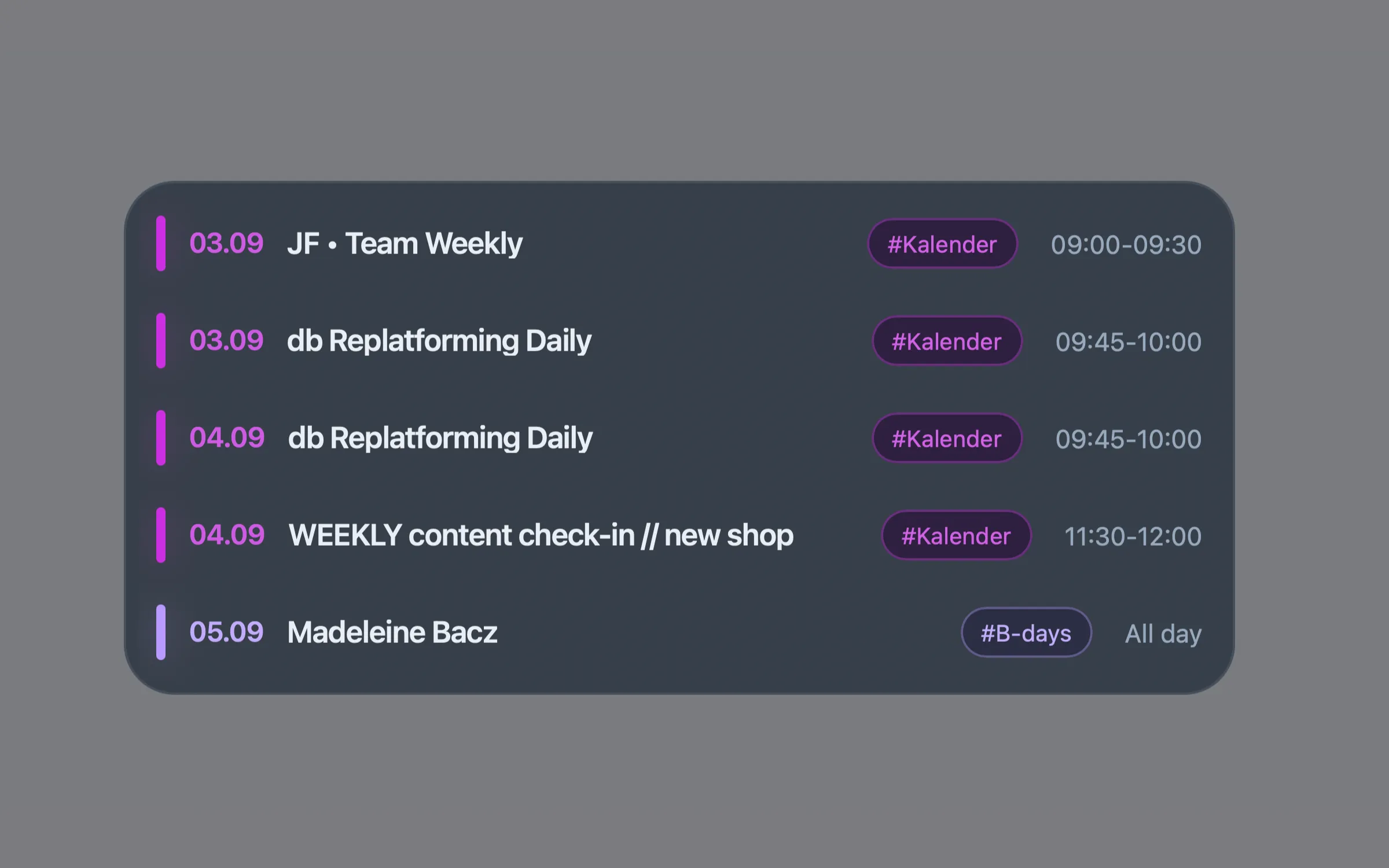
What it does
Berries Calendar displays a focused, configurable agenda using the calendar colours already assigned in Apple Calendar. Each event includes its date, title, calendar name, and time or all-day status.
Features
- Upcoming Apple Calendar events directly on the desktop
- Real calendar colours, recurring events, and multi-day all-day events
- Calendar allow-lists, block-lists, and event-title filtering
- Optional all-day-event filtering for every calendar or selected calendars
- Adjustable desktop position, width, event limit, and column count
- Local EventKit access with no external API calls
How it works
- Übersicht renders the desktop widget.
- A local Zsh launcher finds Node.js and starts the fetcher.
- The fetcher runs a Swift and EventKit script to request Calendar access and read upcoming events.
- The widget filters, formats, and renders the results on your desktop.
Requirements
- A Mac with Apple Calendar configured
- Übersicht
- Node.js
- Swift from Xcode or the Xcode Command Line Tools
Install Berries Calendar
- Install and open Übersicht.
- Download and unzip berries-calendar.widget.zip from the repository.
- Copy berries-calendar.widget into ~/Library/Application Support/Übersicht/widgets/.
- Refresh Übersicht and allow Calendar access when macOS asks.
Configuration
Edit config.json inside the widget folder, then refresh Übersicht.
{
  "position": { "top": 40, "left": 40 },
  "width": 480,
  "limit": 5,
  "columnCount": 1,
  "lookaheadDays": 30,
  "includeCalendars": [],
  "excludeCalendars": [],
  "excludeTitlePatterns": [],
  "hideAllDayEvents": false,
  "hideAllDayEventsFromCalendars": []
}- Use includeCalendars or excludeCalendars to control which Apple Calendars appear.
- Use excludeTitlePatterns to hide routine events by title; matching is case-insensitive.
- Set hideAllDayEvents or hide all-day events from selected calendars while keeping their timed events.
Privacy
The widget queries EventKit locally on your Mac. It does not use external APIs, analytics, telemetry, an account, or an API key, and it does not write Calendar or event data to disk.
Troubleshooting
- Node.js is required: install Node.js, then refresh Übersicht.
- Calendar permission required: allow Calendar access for the process macOS identifies, then refresh Übersicht.
- No upcoming events: increase lookaheadDays or check Apple Calendar.
- All events filtered out: review the calendar and title-filter arrays in config.json.